If you have been playing Deadlock for a while then I am pretty sure that you have run into some form of FPS drops or stuttering, especially during big team fights. A lot of players just deal with it and assume it is a hardware problem. In most cases, it is not. What it is, is a settings problem that you can fix in about 15 minutes.
Start with your in-game settings
The biggest FPS gains in Deadlock are going to come from inside the game itself, not from third party tools or Windows tweaks. Go to your video settings and set your Window Mode to Full Screen. Not borderless windowed, full screen. What borderless does is it basically forces your PC to share resources between the game and your desktop at the same time, which causes a decent amount of input lag and inconsistent frame delivery.
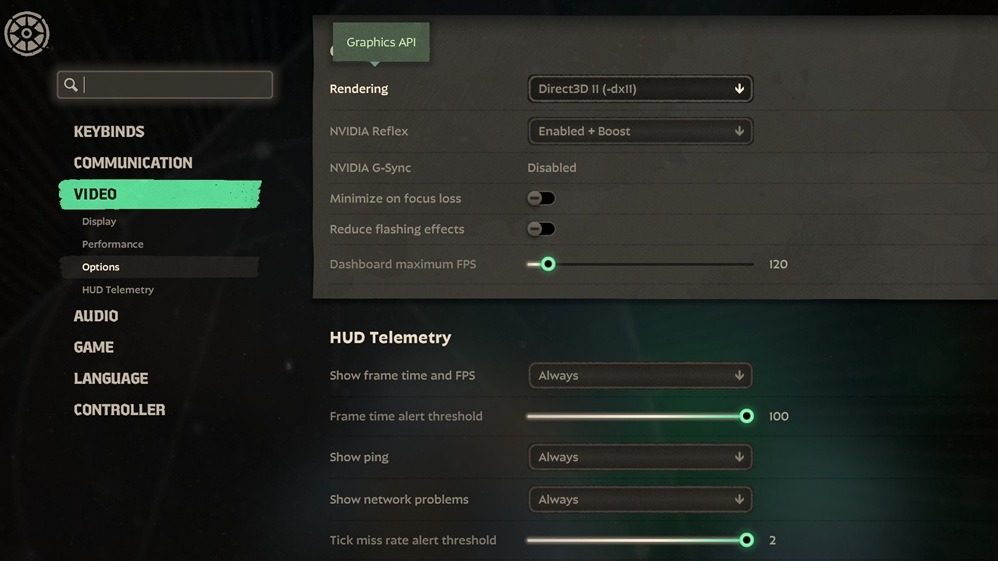
For your render API, I would suggest trying Direct3D 11 first. A lot of players have better frame time consistency on DX11 compared to Vulkan, though Vulkan can perform better on certain setups. If you are getting random stutters that feel like the game is freezing for a fraction of a second, try switching between the two and spend a match or two on each. One of them is going to feel noticeably better on your machine.
The setting that a lot of players miss is Upscaling Technology. Set this to FSR2 (TAA) and your Scaling Mode to Performance or Balanced. What this does is it lets the game render at a lower internal resolution and then scale up, which frees up a ton of GPU headroom without making the game look bad.
Turn all of these off completely: VSync, Screen Space AO, Distance Field Shadows, Area Lights. Shadow Quality and Texture Quality can sit on Medium. Going below Medium on textures does not give you a meaningful FPS boost and the game starts looking genuinely bad.
Also limit your FPS to your monitor's refresh rate. Running uncapped frames produces a lot of unnecessary GPU heat and can actually make your frame times less consistent rather than better.
The shader cache issue
This one catches a lot of people off guard. A pretty common problem that started showing up after updates in late 2025 is where players with decent hardware will drop from 200 frames down to 90 or lower mid-game, and it happens more often towards the end of matches or during team fights. What is happening is the shader cache is building up and causing the engine to stutter while it tries to pull shaders it has already compiled.
I have a fix that has worked for a lot of players I have spoken to. Close the game, go to your Steam library, right click Deadlock, go to Properties, then Local Files, and verify the integrity of your game files. This clears and rebuilds the shader cache the next time you launch. You will notice a longer load time on the first launch after doing this, which is completely normal. The game is just recompiling everything fresh.
Windows and GPU settings
Set your Windows power plan to High Performance. What the Balanced plan does is it allows your CPU to throttle down when it detects low load, and what that creates in a game like Deadlock is inconsistent CPU performance exactly when you need it most, like when six heroes are throwing abilities at each other in a single area.
Disable Power Throttling by going to Windows Settings, then System, then Battery (or Power and Sleep on desktop), then find the option under Graphics or Battery Settings. On some systems this is under the power options in Control Panel. It sounds like a minor thing but I have seen players get a pretty decent improvement in fight scenarios just from this alone.
If you are on Nvidia, go into your Nvidia Control Panel, find Deadlock under 3D Settings, and set Power Management Mode to Prefer Maximum Performance. Also turn off the Nvidia Overlay if you have it running. A few players in the Deadlock forums reported that third party overlays like the Nvidia overlay or even antivirus tools running alongside the game were causing significant stuttering. If you installed something recently and your performance got worse right after, that is probably the reason.
In conclusion
The performance in Deadlock is a lot more manageable than most players think. The FSR2 upscaling change and the shader cache fix alone are going to solve the majority of what you are experiencing. Go through the in-game settings first, then the Windows stuff, and you will be surprised how much smoother your matches feel once everything is dialed in properly.
Lockbuilds
Editor
The Lockbuilds team covers Deadlock hero analytics, build guides, item breakdowns, and competitive strategy.